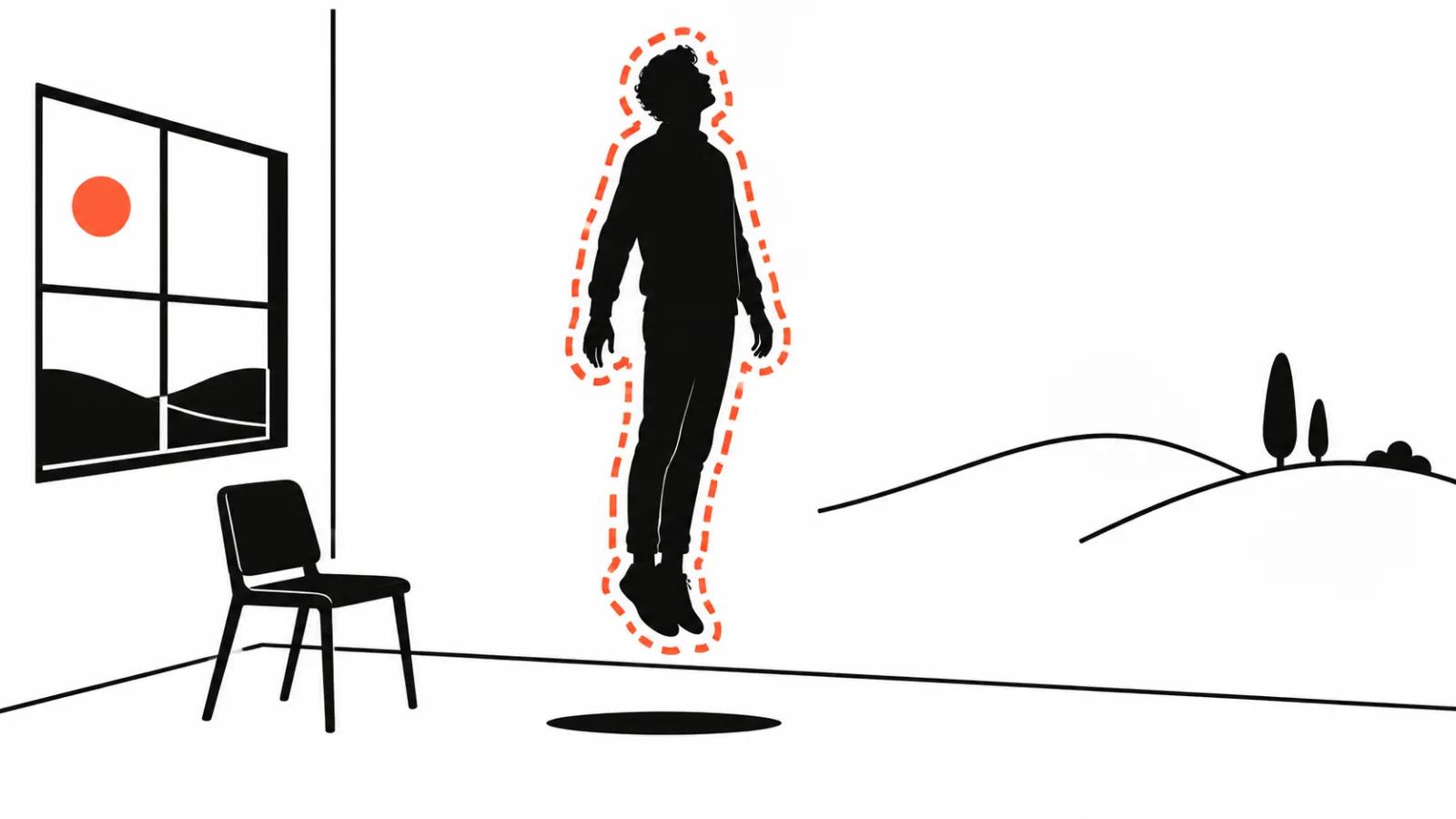
What happens under the hood
Background used to mean a green screen: shoot against green, then subtract the colour by formula. It worked perfectly until green bounced onto skin and hair, and it needed a stage.
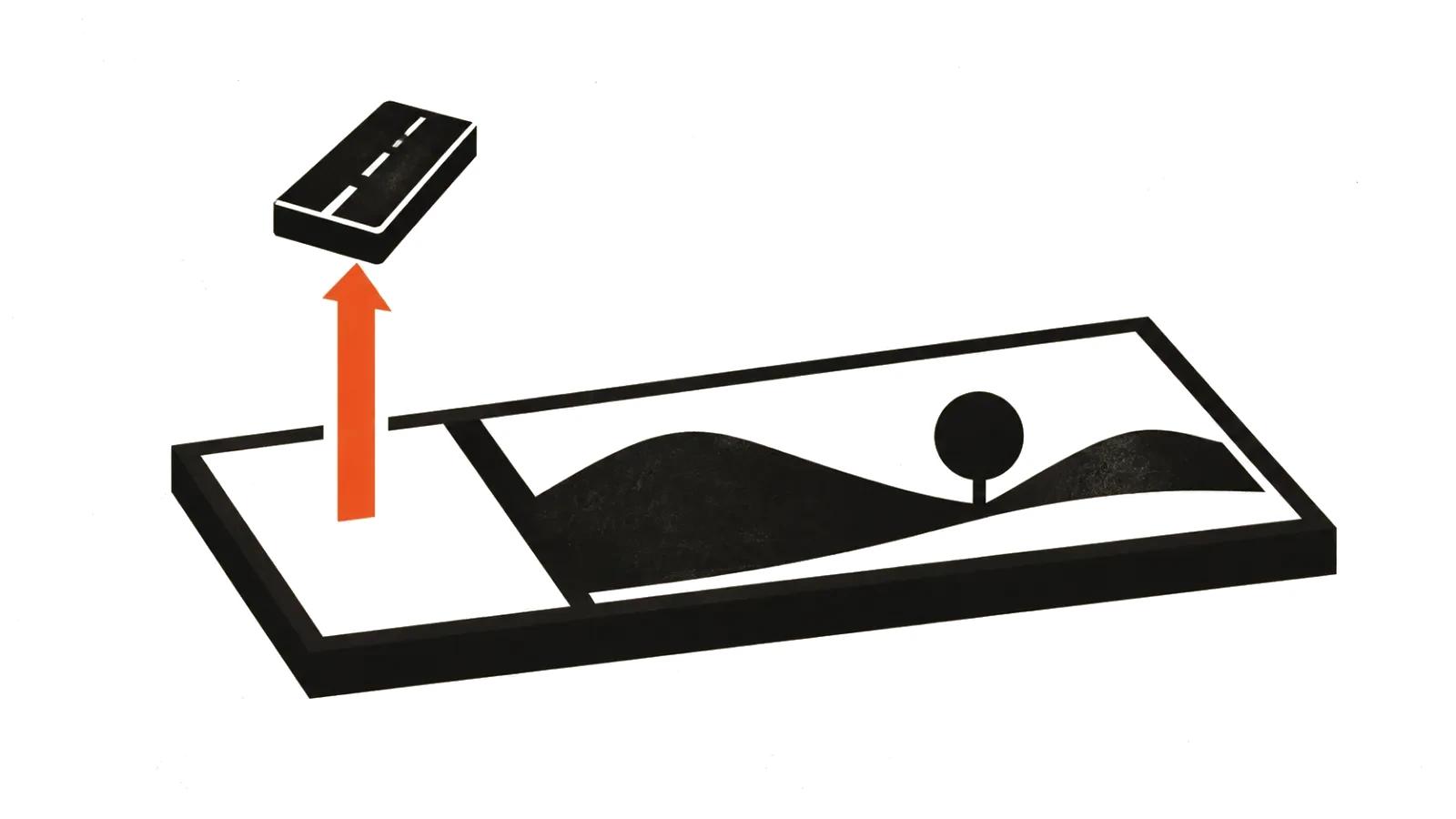
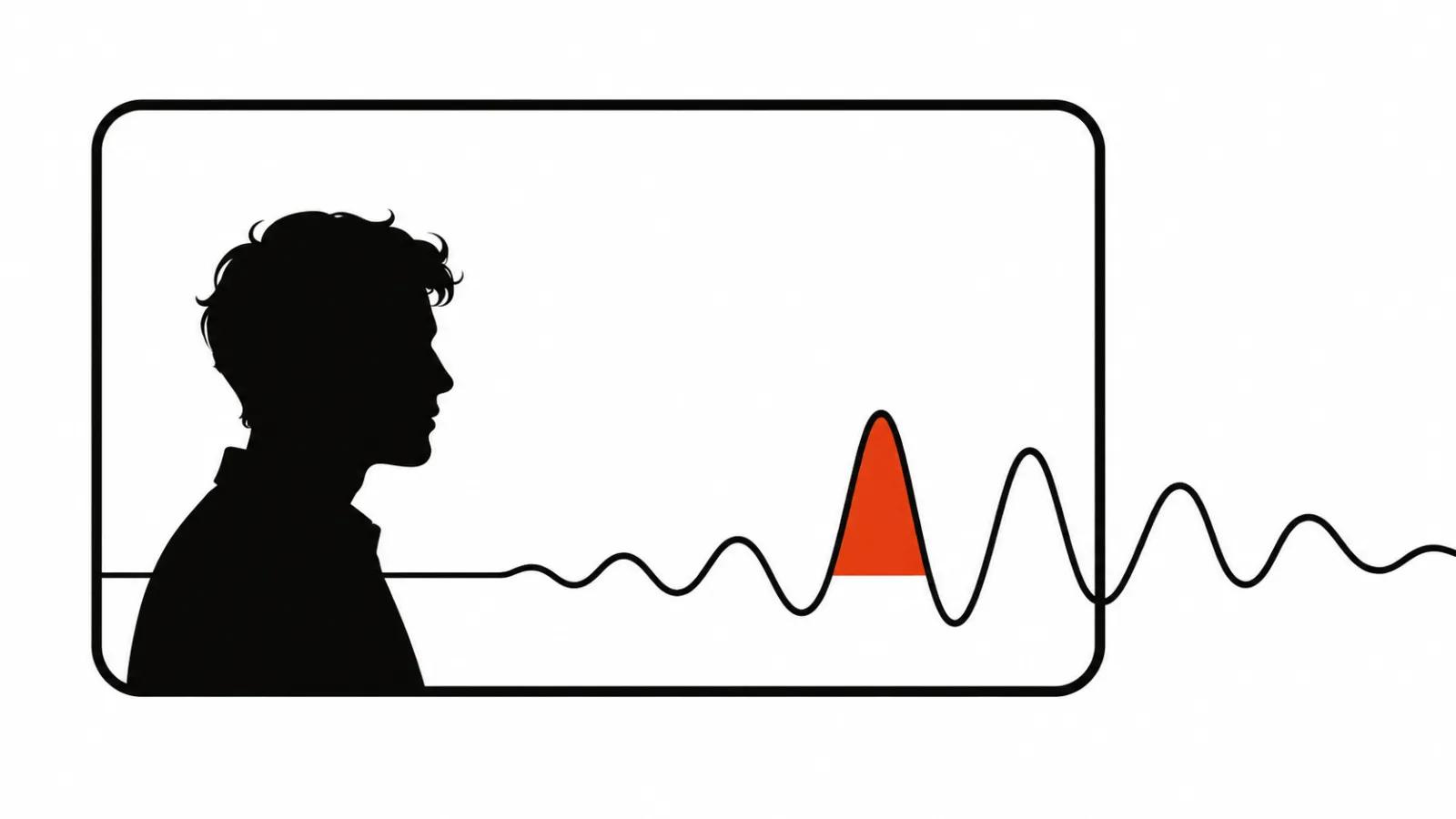
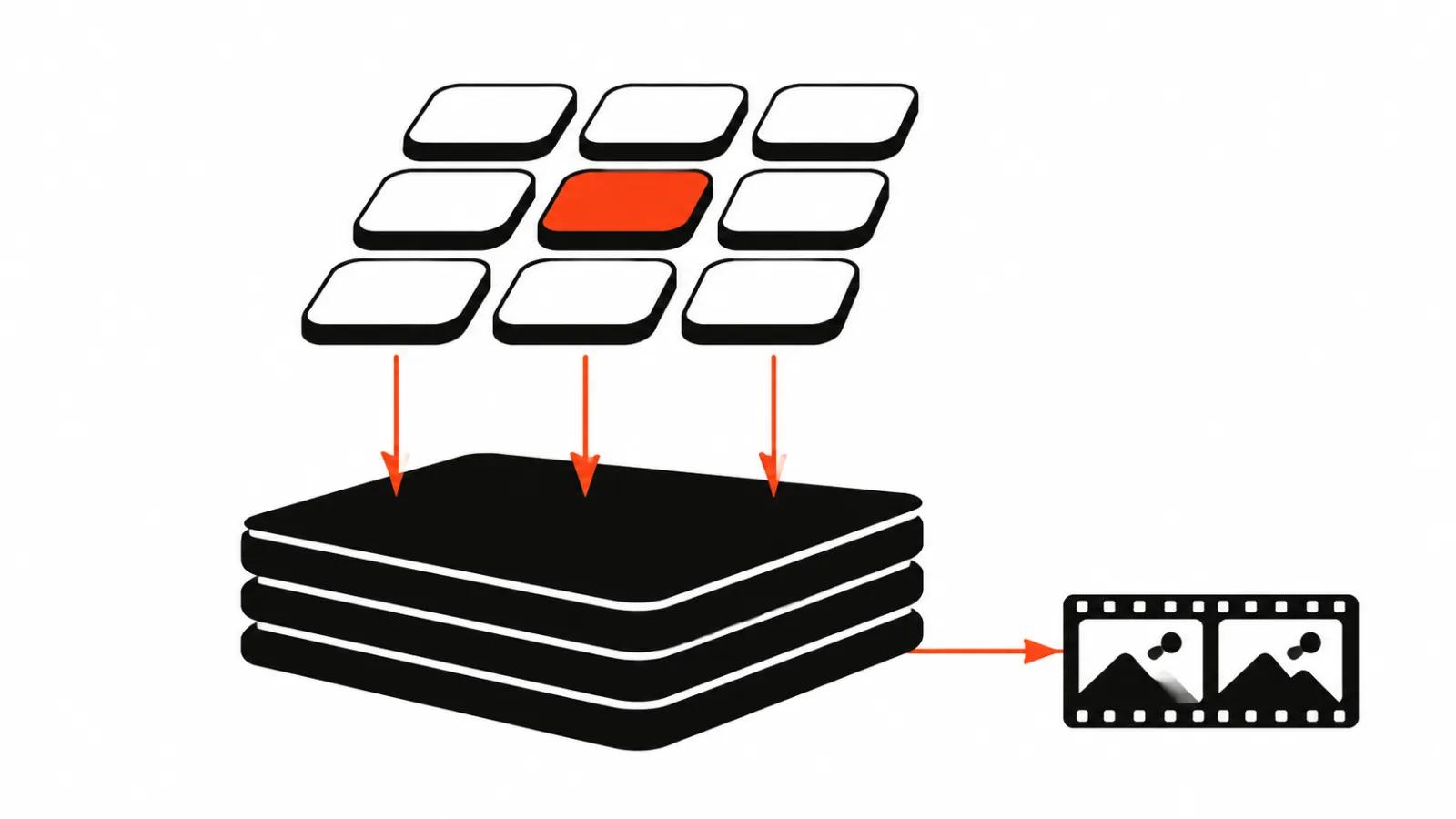
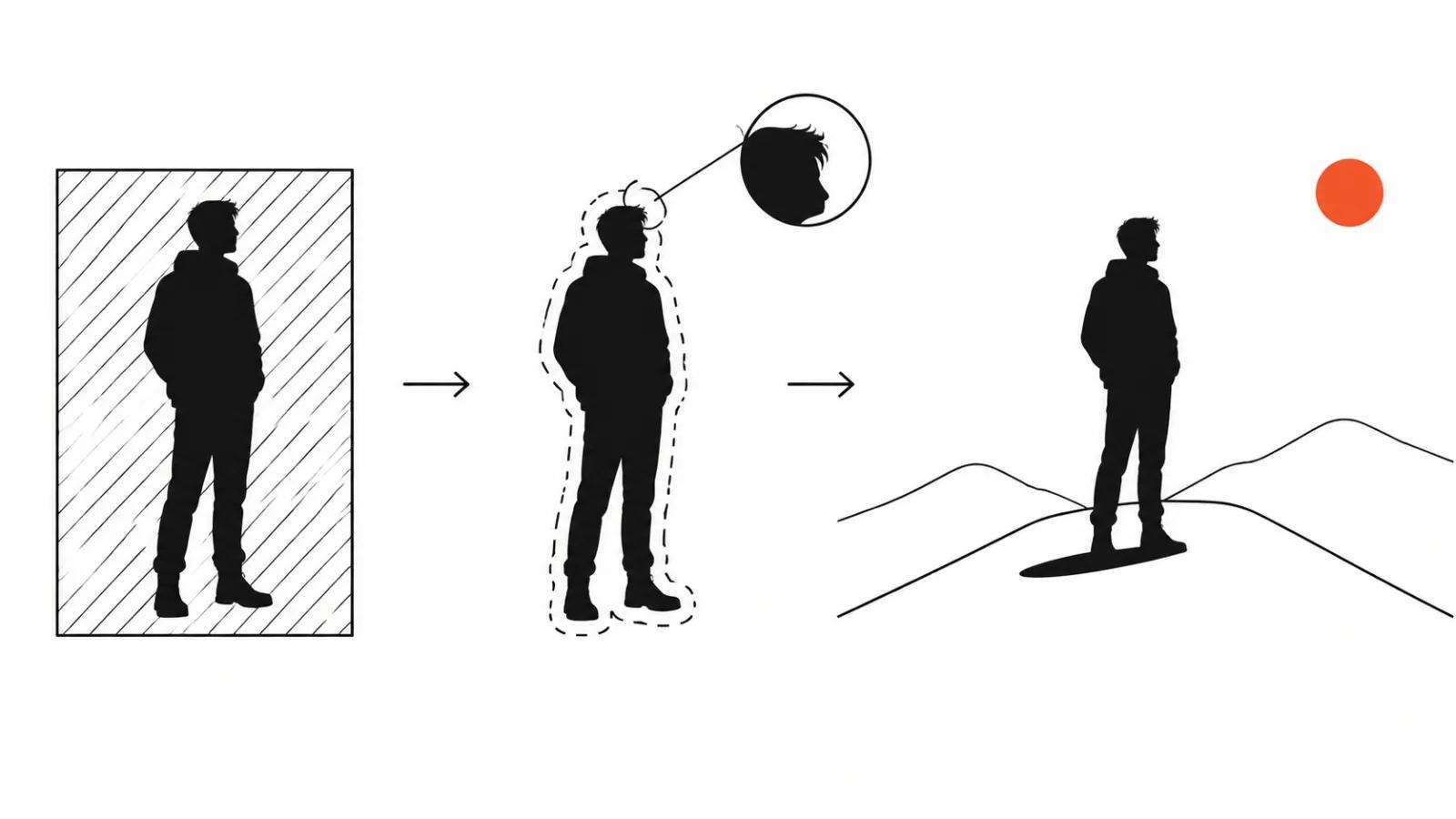
Now segmentation does the job. On every frame the model predicts a matte: subject here, everything else there. The matte is smoothed between frames, otherwise the edge would jitter. Then the background is either filled with a new image or left transparent.
The difference is fundamental. Chroma key knows a colour and does not know an object. A model knows the object and does not know the colour. That is why it separates a person in a room with confidence, and fails where subject and background share tone and texture.
Three approaches
Automatic cutout. The tool finds the main subject and makes it transparent. A new background follows: a colour, an image, another video.
Replacement by description. Here the subject is not cut out at all: you ask the model to repaint everything behind it. The prompt decides the new location.
Chroma key as insurance. If the footage was shot on green, the old method is still more accurate than any model, especially on hair.
The choice depends on material. For finished footage without green, the first two remain. For a shoot you can still organise, the third is cheaper in time.
What Runway documents
Runway ships a Change Backdrop app. It replaces the background behind the subject and, as the page states, requires no green screen.
The stated conditions: upload video up to five seconds, describe the backdrop in text, the app costs 15 credits per second, and it is available on the Standard plan and above. In Unlimited Explore mode it runs without spending credits.
The old tool is worth knowing about too. The Remove Background article in Runway's help centre now says the feature is no longer available: Gen-3 Alpha was retired on July 8, 2026, and Gen-3 Alpha Turbo on July 30, 2026. Other paths take its place, including Edit Studio on the Aleph 2.0 model.
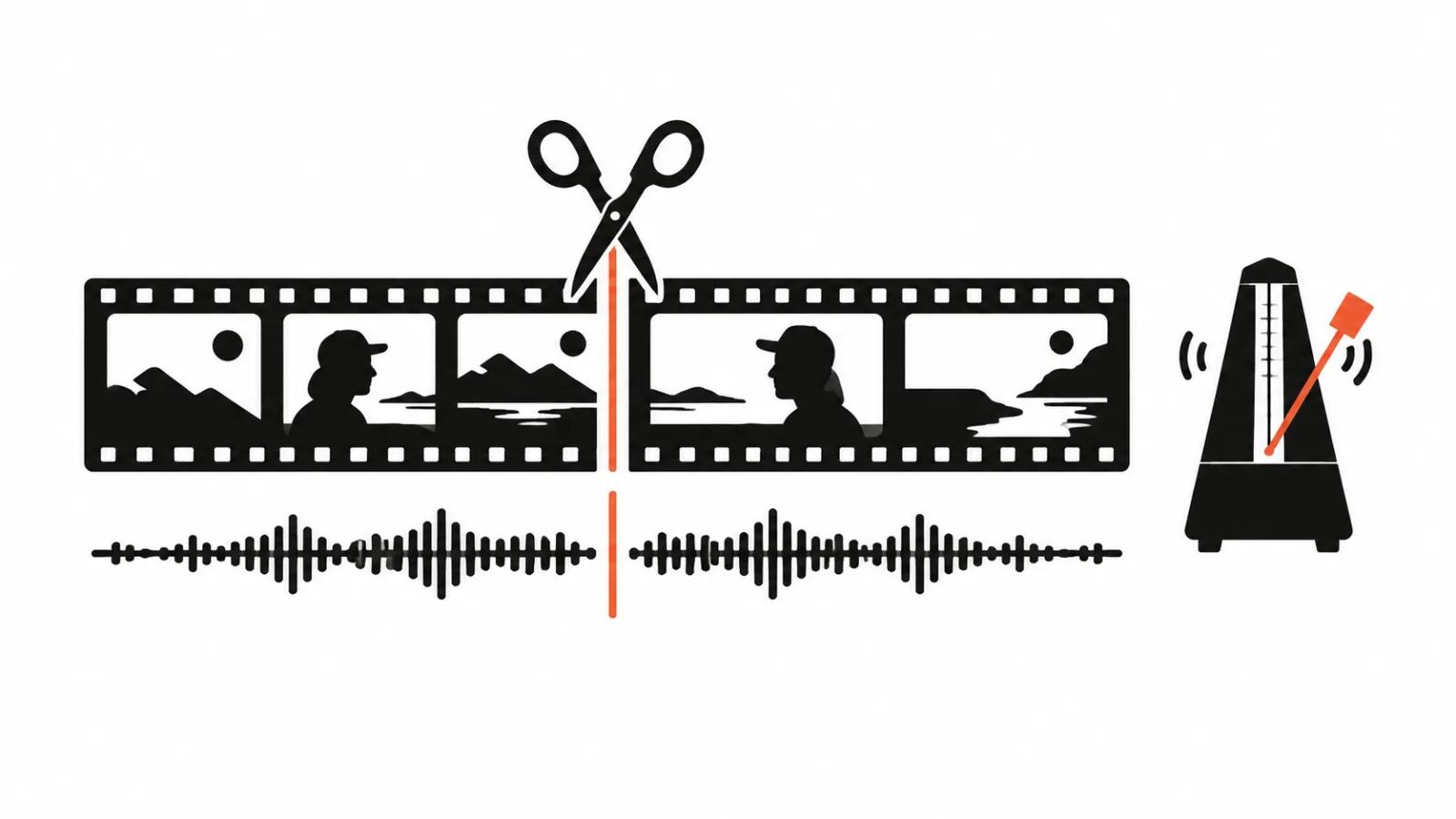
Edit Studio carries its own limits, and they matter more than they look. Video must be 2 to 30 seconds, 480p to 1080p, 24 to 30 frames per second, with 10 cuts or fewer. A clip with eleven cuts is rejected outright. Background swap there happens through a keyframe edit plus a prompt, which suits a location change better than a cutout.
For studios, Runway also documents a clean-plate trick: any video becomes a green screen asset or a clean plate without rotoscoping, and then behaves like ordinary chroma key material.
What CapCut documents
CapCut puts the same operation behind two modes, and the difference is worth keeping straight.
Auto removal cuts the main subject out of an ordinary background, no green screen needed. The documented path: Video, then Remove BG, then Auto removal.
Chroma key handles footage shot on green or blue and works by colour.
After the cutout, CapCut lets you replace the background with a colour, an image or another video, and preview the result before export. For difficult edges the documentation mentions adjustable brushes for cleaning up the contour by hand.
Where it tears
The failures are predictable, and worth knowing before the first render.
Hair. Thin strands against light are the real test. The model either eats them or leaves a translucent rim that glows against the new backdrop.
Hands and objects. Fingers, a pen, a cup: fine motor detail produces a trembling edge and chunks of the old background stuck to the subject.
Fast motion. On motion blur the matte lags and a halo appears.
Shadows and floor contact. The model cuts out the person but does not understand that the shadow belongs to them. The result floats above the new scene.
Tone collision. A white shirt against a white wall, a dark jacket in a dark corridor: the boundary disappears and the silhouette gets holes.
Reflections and glass. A mirror, a window, glasses: the old room stays visible where the new one should be.
The order of work
An order that cuts the number of redos.
Pick a reference frame first. One frame where the person is fully visible and not blurred. The matte is tuned on it, and the rest of the clip follows.
Then check the contour on pause. Frame by frame, without playback, at the hardest moment: a head turn, a raised hand.
Then match the backdrop to the light. If the person was shot with warm light from the right, a cool studio on the left reads as a composite.
Then bring the shadow back. Drawing one or reusing a shadow layer costs less than leaving a floating person.
Last, run the motion. Watch the seams between mattes, because jitter shows there and never on a still frame.
A check before export
The hair contour has no pale rim.
- Fingers are neither fused nor clipped.
- A shadow exists under the feet and falls the way the light does.
- No halo on fast movement.
- Skin tone survived the swap.
- Reflections do not reveal the old room.
- Reframing does not crop the subject.
When not to replace the background
Sometimes reshooting beats rescuing a frame. In a scene full of glass, reflections and fast hands, replacement eats more time than a new shoot on green.
There is another route: repaint the scene itself. That is a job for AI video editing, where the model rebuilds the environment along with its light and shadows.
For a stream of short clips, background work becomes routine and belongs in the process from the start, which is what AI video production covers, with operations like this batched. In vertical campaigns the background carries half the meaning, so it pays to know how vertical video ads are built. And where a real person is on camera and every detail matters, filming stays honest, which is the world of handcrafted videos.