Seven tasks that AI video processing covers
The search phrase arrives as one line, and inside it sit seven jobs: raise the quality, take something out of the frame, change the background, change the person, fix the audio, add subtitles and translation, cut a long video into vertical fragments. Each one has its own class of models, and mixing them up costs money. An upscaler will not remove a microphone. A background editor will not rescue audio recorded in an echoey room.
The general shape of AI video editing is covered in a separate piece of ours. This one stays at hub level: the task, what it solves, where it breaks, and where to read the detail. The seven sections below are seven doors.
Quality and resolution: where AI video processing earns most
Upscaling promises detail back from a compressed file, and often returns invention with it. The model paints skin texture, foliage, the small print on a sign, and at 100% zoom you can see where restoration ends and fantasy starts. The working rule is dull. Do not pull 480p straight to 4K, step up by a factor of two, and check text and logos on their own, since letters blur first.
Grain and the mush left by platform compression are a second layer. They come off before the upscale, otherwise the model reads compression artifacts as detail and locks them in. The full order is in our guide to AI video upscaling, and we looked at Topaz Video AI separately, including its modes and settings.
Removing an object or text from the frame
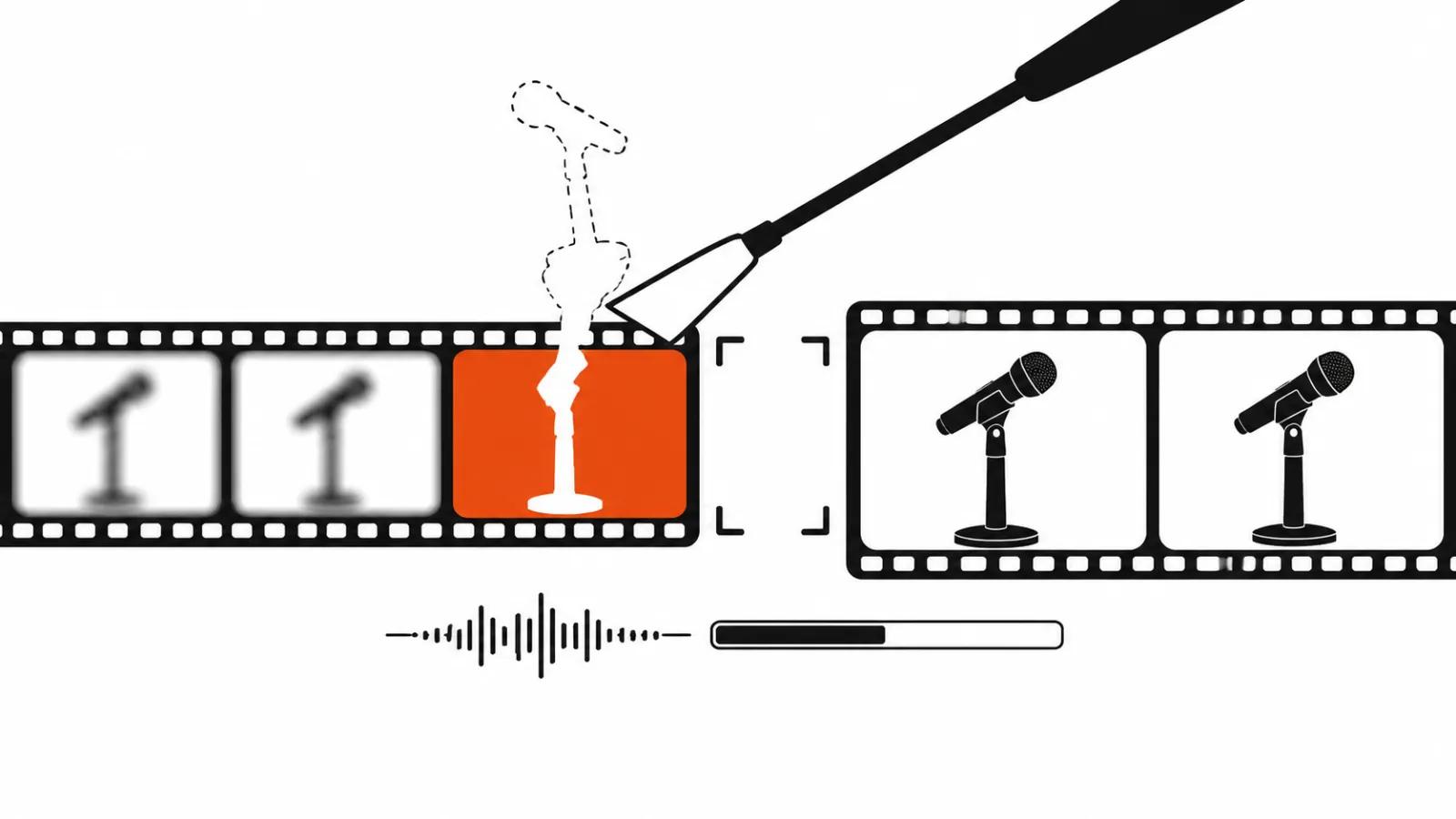
The second task is cleaning the shot: a microphone in front of the subject, someone else's logo on a shirt, a car that drove past in the background, a sign on a wall. The mechanics are always the same: mask, track, inpaint, check the edges. It breaks in predictable places, on hair, glass, smoke and shifting light, where the patch starts to flicker.
Text is its own story. Letters on fabric and on a curved surface live with the movement, and the model either erases half the word or drags it along. Hence the rule: remove the object first, the text second, and watch every step in motion. We have guides for both, on removing an object from video with AI and on removing text from video with AI.
Background replacement and face replacement
The third task is the background. Segmentation cuts a person out without a green screen, and a shadow on the floor or hair against a bright window gives the edit away. One sign of good work: the shadow falls where it fell in the original.
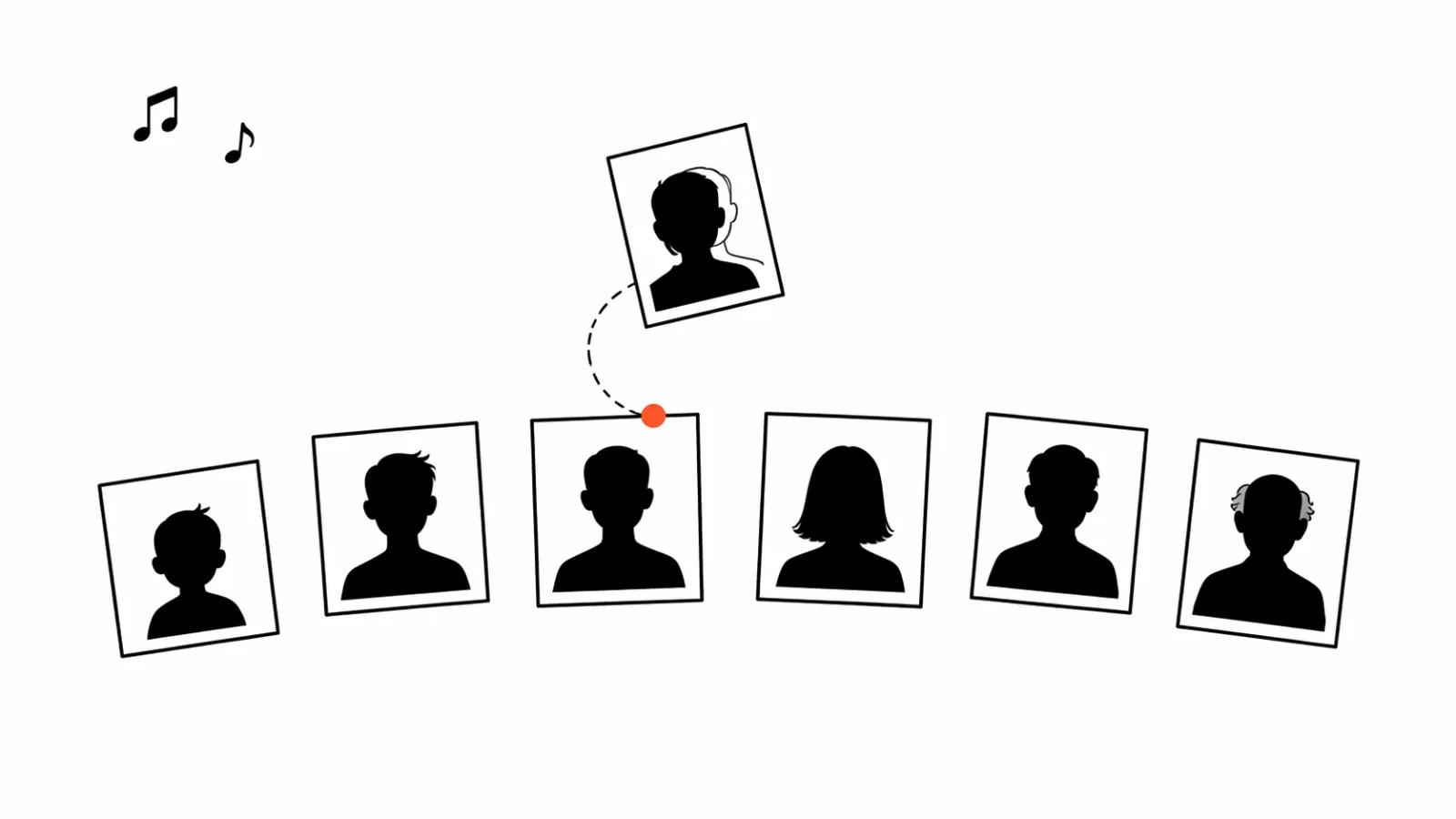
The fourth task is the person in frame. Masks are only half of it, since someone else's face needs their consent, and that conversation belongs before the render. We covered the technical side in our piece on face swaps in video, and swapping one person for another in a finished clip is handled by a separate tool, Lockstep, which has its own breakdown.
Audio, subtitles and translation
The fifth task is sound. Models clean street noise and room rumble, level the loudness between takes, and lift speech recorded on a built-in mic. The ceiling is easy to state: if the voice is buried under music or clipping, restoration adds smoothness and does not bring words back. The order is in our guide on improving video audio with AI.
The sixth task is text on screen. Automatic subtitles give you timing in minutes, and line breaks and the vertical frame still need a hand, otherwise two lines collide. Translation and dubbing follow: a new voice, fitting it to the timing, plus the jokes and names that do not survive. Two guides cover this, on AI subtitles for video and on AI video translation and dubbing.
Cutting a long video into shorts
The seventh task is distribution. A long video gets split into vertical fragments, and the model looks for boundaries by speech and faces in frame, since it does not read meaning. OpusClip 4.0 in this class cuts by scene and burns in subtitles, and we have its breakdown. What to check after the automatic pass: the first two seconds of each fragment, the crop around the face, and words cut off at the joins. Splitting video into shorts almost always needs a hand on the hooks.
Changing a finished clip by describing the edit
The loudest release of the week is editing an existing clip instead of generating a new one. Gemini Omni 1.2 Flash shipped on November 5: it swaps the product or the background in an already finished clip, changes light, weather, aspect ratio, and does it from a description with no full regeneration. It works in pieces up to 15 seconds and costs about $0.07 per second at 720p.
Pruna released P-Video-2-Pro-Replace on top of MiniMax H3, announced the same day. It replaces one or two people from a photo while keeping the camera, the background, the motion and the original audio, with clips from 1 to 120 seconds. Pricing by resolution: about $0.05 per second at 480p, $0.10 at 768p, $0.12 at 1080p, per Pruna's own page.
What this changes in practice. A single object fix used to mean a new render and a new scene, and now only the fragment is rebuilt, which shows up in the schedule. The limits are real as well: 15 seconds at Gemini and preserved original audio at Pruna suit ad inserts and short scenes, while a long scene still gets assembled from pieces.
My conclusion: the order beats the service
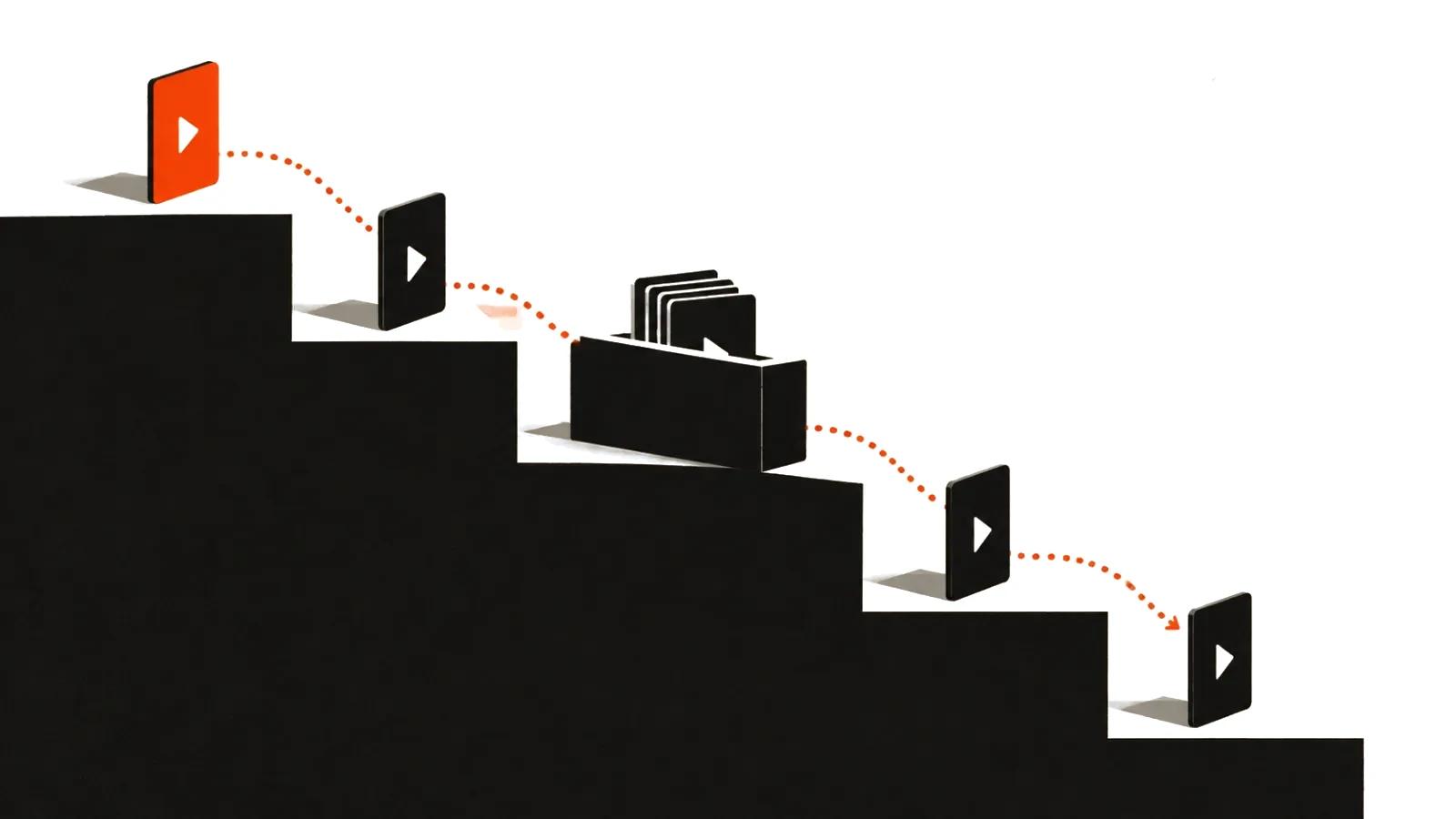
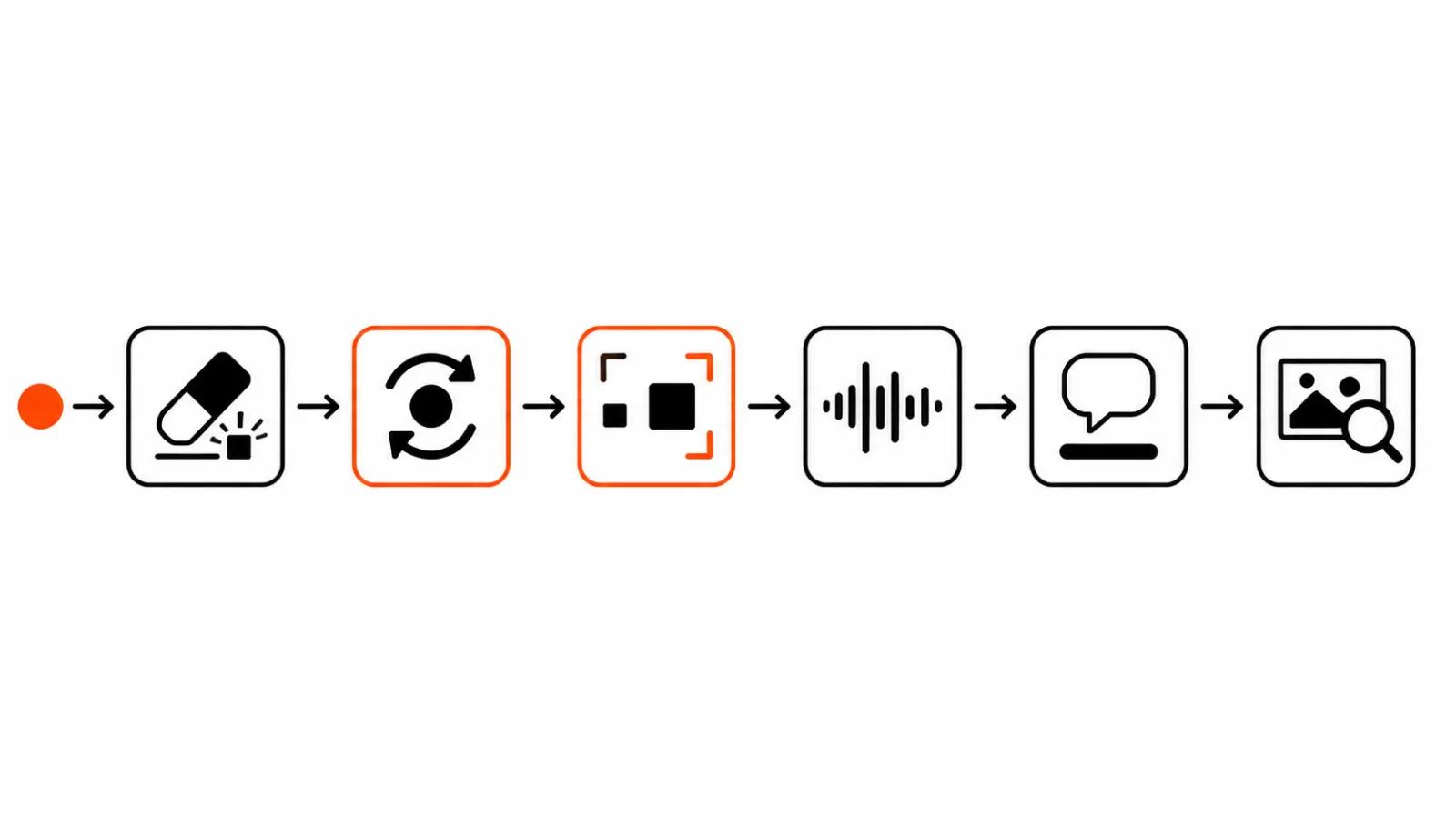
One order, for any clip.
The logic is plain. An upscale before the clean multiplies artifacts. A mask laid over pixels that were invented a minute ago spreads at the edges, and the patch has to be redone at a resolution where every error shows. The order of operations saves more than the choice of service, and that is the one conclusion I have held for three months running.
In our stream we work exactly like this: AI video production runs as a pipeline, and the difficult fixes go into handcrafted videos, from $190, where a person owns the frame. When a video is meant to live on a channel for months, running a YouTube channel folds this processing into the release plan. For a batch of vertical inserts the logic repeats: clean base first, replacements second, resolution last.
- Source at the highest quality available, with no intermediate re-encodes.
- Cleaning: objects, text, extra people.
- Replacement: background, person, scene details.
- Upscale and detail restoration.
- Audio and subtitles last, they do not touch the picture.
- A check at 100% zoom and on a phone, because platform compression eats soft transitions.